Time Off Request
The Time Off Request FAQ section furnishes responses to commonly asked questions regarding fundamental concepts encompassed within Time Off Requests.
-
How do I process Time Off Requests?
There are two ways to “Process Time Off Requests”.
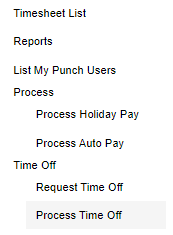
First Method: Get to the “Process Time Off Requests” section using the Navigation Pane.
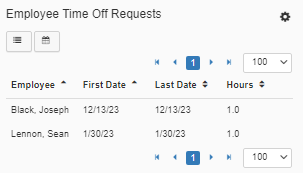
Second Method: Utilize the “Employee Time Off Requests” widget on your Dashboard.
-
Verify the request needing to be processed is showing up in the “Employee Time Off Requests” widget.
-
Click in to process the request.
Either of the methods above will get you to the point of being able to approve or deny time off requests. Once here, find the request that needs to be deleted, click to select it, and hit the “Deny Request” button (Red X) or Approve (Green Check). If rejected, the system will then allow entry of Time Off Request Denial Notes.
-
-
How can I sort by more than one column header simultaneously?
Currently, there are two areas where you can sort by more than one column header simultaneously. The "Employee Time Off Request" widget, and the "Process Time Off Request" screen both allow you to sort by two column headers simultaneously.
Employee Time Off Request Widget: From the Dashboard, navigate to the "Employee Time Of Request" widget.
-
Primary Column: First, click to select the "Employee" column header to sort this column by either ascending, or descending order.
-
Secondary Column: To select the secondary column you would like to sort by, press and hold the 'CTRL' key on your keyboard, and click the second column. Either 'First Date', 'Last Date', or 'Hours'.
Note: Multi-column sorting is limited to a selection of two columns simultaneously, with the Employee column reserved for the Primary selection.
Process Time Off Requests: From the navigation pane, select Time > Time Off > Process Time Off Requests to access the "Process Time Off Request" screen.
-
Primary Column: First, click to select the "Employee" column header to sort this column by either ascending, or descending order.
-
Secondary Column: To select the secondary column you would like to sort by, press and hold the 'CTRL' key on your keyboard, and click the second column. Either 'First Date', 'Last Date', or 'Hours'.
Note: Multi-column sorting is limited to a selection of two columns simultaneously, with the Employee column reserved for the Primary selection.
-